New installations get a cleaner dashboard address, iPhone users gain live status cards, and custom automations still need technical setup.
Home Assistant is trying to make its do-it-yourself smart-home platform easier to approach. Recent reports describe a simpler local dashboard address, clearer labels, better cloud settings, and live status updates on iPhones and Apple Watches.
These are software and interface improvements, not a new plug-and-play product. You still need a Home Assistant installation, compatible devices, and some willingness to configure the system.
A cleaner way to reach the dashboard
According to MakeUseOf, new Home Assistant OS installations starting with version 2026.8 no longer require the unusual :8123 at the end of the local web address. New users can type homeassistant.local instead.
That number was the web port Home Assistant used before. A port is a numbered doorway that directs network traffic to a particular service. Most new users do not need to understand that idea, but they may see the number and wonder whether they entered the address incorrectly.
This change applies to new installations. Existing installations do not switch automatically. MakeUseOf reports that owners can change an older installation manually, with a five-minute safety feature that reverses the change if the new address stops working.
The project also removed or revised roughly 43 “advanced” and “expert” labels across the main app, companion phone apps, and official documentation. The underlying features did not change. The wording changed so users are less likely to assume a setting is reserved for technical experts.
One example is the section formerly called Developer Tools, which is now called Tools. That does not make an automation build itself, but it makes an important area sound less forbidding.
Cloud access has a clearer path
Home Assistant can run locally, but reaching it while away from home may require extra network setup. The report describes options such as a reverse proxy, router changes, or another remote-access tool.
MakeUseOf reports that Home Assistant Cloud now groups its settings into categories such as remote access, backups, and voice control. A guided wizard walks first-time users through the setup instead of presenting one long list of switches.
Home Assistant Cloud is an optional paid service, but the supplied reporting does not include its price. That means the total cost depends partly on whether you choose it. The records also do not establish the cost of the computer or other hardware used to run Home Assistant.
The practical takeaway is not “free smart home.” It is that one part of the setup may now be easier to understand. You still need a Home Assistant installation, compatible devices, and enough network configuration for the features you want.
iPhones can show ongoing activity
The Home Assistant Companion app now supports Apple Live Activities, according to How-To Geek. These are changing displays that remain visible on an iPhone Lock Screen and, on supported models, in the Dynamic Island instead of arriving as a series of separate notifications.
The feature requires Home Assistant Companion app version 2026.9.0 or later, Home Assistant Core version 2026.7.0 or later, and iOS 17.2 or later. An Apple Watch can mirror the Live Activity from the iPhone.
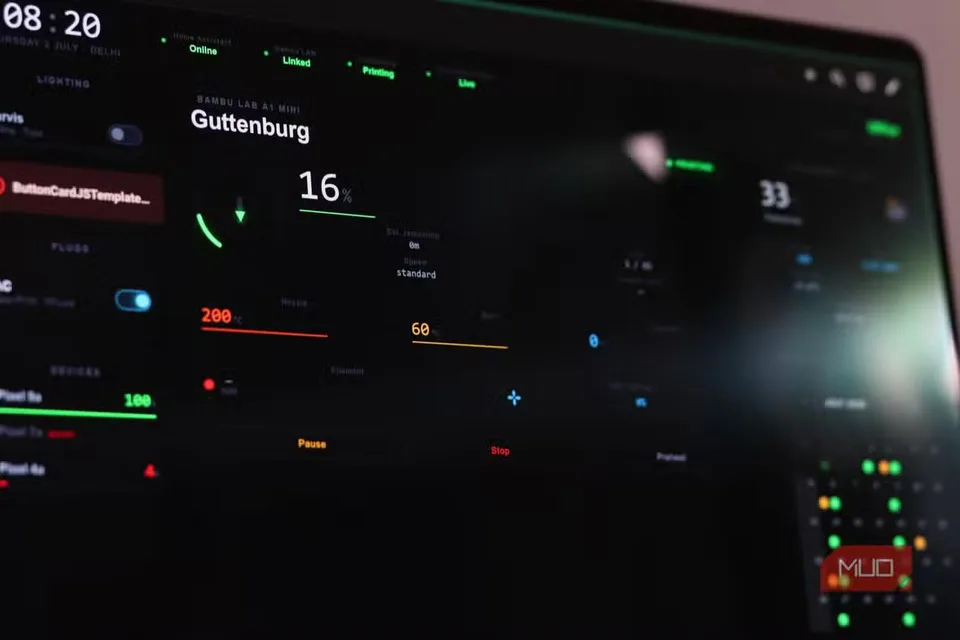
This format works best for progress that changes over time. For example, Home Assistant can show a robot vacuum’s cleaning progress and the room it is cleaning. It can also display the progress of a 3D-printer job or how long a door has been open.
Live Activities are not a replacement for every alert. A window opening, motion detection, or water leak is better suited to a normal notification, especially when the event needs immediate attention. How-To Geek also reports that very frequent updates may be throttled or dropped.
Creating one still requires editing a notification payload, which is structured information sent with the alert. The setup includes a live_update setting and a matching tag. That is simpler than building a full automation, but it remains more technical than enabling a feature in many mainstream smart-home apps.
A battery project shows the real trade-off
One reported setup uses Home Assistant to manage charging for an old laptop that serves as a home server. The laptop stays plugged in, while its battery remains available as backup power.
The project uses a smart plug and battery information exposed over the network by a service such as System Bridge running on the laptop’s operating system. Home Assistant then polls that information. Because the reported Home Assistant installation runs in a virtual machine, it cannot directly read the laptop’s battery hardware.
The automation turns the plug on below 50 percent battery and off at 80 percent. A second rule force-charges the laptop below 20 percent. The setup also watches the plug’s power reading, helping the owner notice when charging appears to have stopped.
The reported project used a TP-Link P110 and described the plug as costing $10. That is the cost quoted for that individual setup, not a guaranteed current price or complete ownership cost. The supplied information does not establish the P110’s price or availability in every market.
The plug also requires configuration. The report says users need the TP-Link Smart Home integration and must enable third-party compatibility in the Tapo app. Firmware updates can disrupt local access, so this is not simply a matter of plugging in the device and walking away.
Most importantly, the 50-to-80-percent thresholds are one user’s configuration, not a tested recommendation for every laptop. The supplied reporting does not independently show that this automation extends battery life. It also depends on accurate battery readings, a working network connection, and reliable smart-plug integration.
Is Home Assistant easier enough to try?
Yes, if you are willing to do some setup and want ongoing control over your automations. The cleaner dashboard address and simpler labels help beginners start, while Live Activities make gradual status changes easier to see.
The catch is that Home Assistant remains a system you configure. Notifications may require editing structured settings, remote access may require a paid cloud service or network work, and projects such as battery management need dependable device data.
For comparison shoppers, start with one small project before spending more. Check that your chosen device works with Home Assistant, then try a useful status display or single smart-plug automation. That will show whether the platform’s flexibility is worth its continuing setup and maintenance work.